Pages and templates
Your store is made of two kinds of page. A page is one page you write, such as the home page or About. A template is designed once and filled in for every product, collection, category and so on.
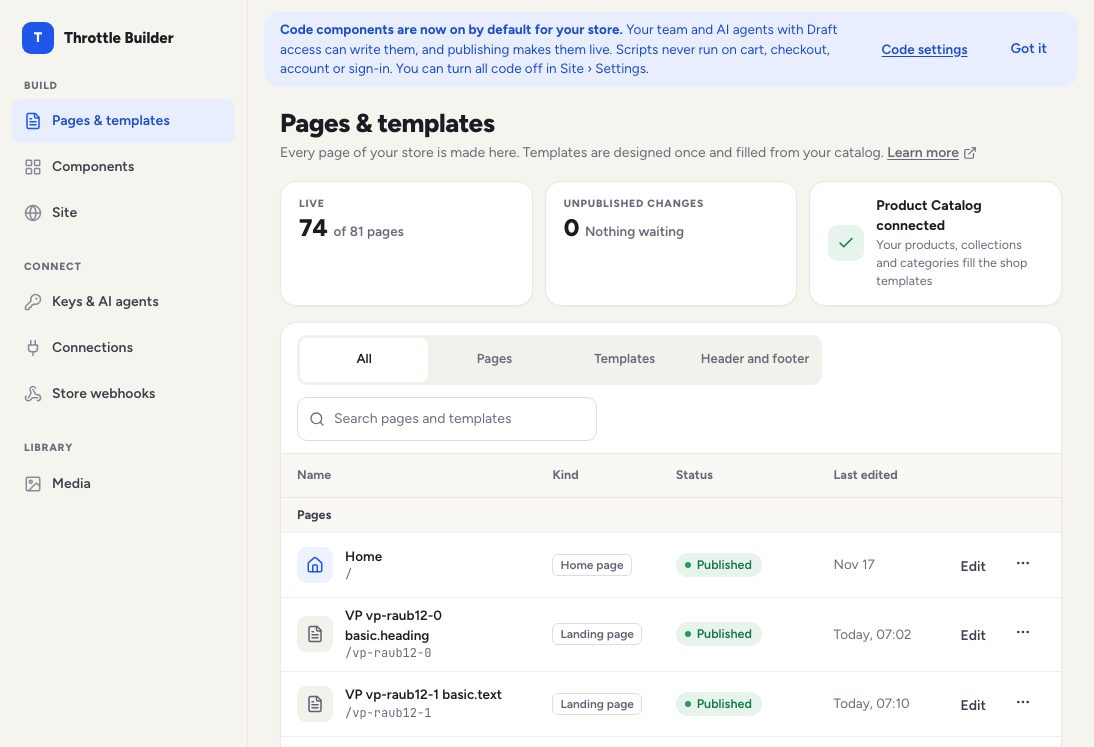
The Pages & templates screen
The table has a Show filter (All, Pages, Templates, Header and footer) and a search box. Every row opens in the editor. Each row shows its Kind, its Status and when it was Last edited.
- Draft: never published.
- Unpublished changes: live, with newer changes waiting.
- Published: what is live is what you see.
- Default layout: a template you have not changed yet.
The More actions menu of a page has Publish (when it has changes), Settings, Duplicate and Delete. The home page cannot be deleted. A deleted page stays live until you publish the deletion; it is listed as Deleted · Publish to remove with a Publish deletion button.
Content pages
Create a page
Type a name in New page name, choose Content page or Landing page
under Page type, and choose Create page. The page opens in the editor as a draft. The
home page already exists. An AI agent uses create_page.
Page settings
Open Settings from the row menu. If the store has more than one language, pick the language to edit first.
| Field | What it does |
|---|---|
| Page name | The name shown in the list and used for the page title. |
| Address | The page handle. Lower case letters, digits and dashes. The home page has none and always lives at /. |
| Page path | Optional short address such as /about or /help/returns: a slash and up to 3 parts of lower case letters, digits and dashes. Without it the page answers at /pages/ followed by the address. |
| Search title | The title search engines show. Empty means the page name. |
| Search description | The description search engines show (300 characters at most). Empty means the site description. |
| Share image | The picture shown when the page is shared. Empty means the site image. |
| Hide this page from search engines | Marks the page noindex. It still opens for anyone with the link. |
An AI agent changes all of these with update_page_meta.
Templates
Open a template from Pages & templates like any page. A bar at the top says which template it is and where the store answers it. You design it with the same editor: sections, columns and components.
| Template | Address | Shown for |
|---|---|---|
| Shop all | /shop | Every item |
| Collection | /collections/{handle} | One collection |
| Category | /c/{handle} | One category |
| Tag | /tags/{tag} | Items with a tag |
| Search results | /search | Results for a typed word |
| Product | /p/{handle} | One product |
| Cart | /cart | The shopper cart |
| Account | /account | Orders, subscriptions and addresses |
| Verify email | /account/verify | Where the verification email leads |
| Sign in | /sign-in | Shoppers sign in |
| Sign up | /sign-up | Shoppers join |
| Order complete | /order/complete | After checkout |
| Not found | any unknown address | The 404 page |
Shop templates need Product Catalog
The shop, collection, category, tag, search, product and cart templates appear only when Product Catalog is installed. Without it the table says how many shop templates are hidden, and your edits to them are kept. The account, sign-in, sign-up, verify email, order complete and not-found templates are always part of your store.
The one component each template needs
Each template must hold one particular component exactly once. Publishing is blocked until it is there, and the editor shows a banner telling you which one to add from the Add tab.
| Template | Needs |
|---|---|
| Shop all, Collection, Category, Tag, Search results | Listing grid |
| Product | Product buy box (or a Product main, which includes it) |
| Cart | Cart lines |
| Account | Account dashboard |
| Verify email | Verify email |
| Sign in | Sign in |
| Sign up | Sign up |
| Order complete | Clear cart |
| Not found | Nothing in particular |
The product template layouts
The product template ships these starting layouts: classic, split, stacked, editorial. There are three real layouts:
Classic (the gallery beside the buy box), Stacked and Editorial;
split is the old name of classic and draws the same page. They are the same three choices as the
Layout option of Shop display and the Page layout option of the Product main component.
Every starting layout holds the breadcrumbs, the product main block and the product details. An AI agent picks one
when it resets the template, with reset_template and its variant option. The visual editor has no variant picker on the template itself:
choose the layout in Shop display and apply it with Reset template, or change Page
layout on Product main.
Components that belong to templates
- Product main, Product gallery, Product buy box, Product breadcrumbs, Product details, Product related and Product reviews can be used only on the Product template.
- The listing components (Listing header, Listing grid, Listing filters, Listing toolbar) and the cart components read the page they sit on. Outside their template the editor shows a note instead.
- Everything else can be used on any page, template, header, footer or saved section.
All of them are listed on Components.
Default layout and Reset template
A template you have not changed shows Default layout in the list. Throttle supplies the default design: for example the listing templates hold a header, toolbar, filters and grid, and the cart holds a heading, cart lines, an empty-cart message and a summary.
To go back, open the template and choose Reset template, then Reset to default. Only your draft changes. What is live stays until you publish, and you can still restore an older version from History. Choose Keep my draft to cancel.
Which templates search engines skip
These templates start as noindex, which asks search engines to leave them out: Search results,
Cart, Account, Verify email, Sign in,
Sign up and Order complete. The shop, collection, category, tag, product and not-found
templates are indexed. A template can have its own title template, description and noindex setting; an AI agent
sets them with update_page_meta and the document template:product (or another template name). The page-level search settings are
on Search and sharing.
Search and sharing for a template
In the editor, open the More actions menu of a template row and choose Search and sharing. The dialog Search and sharing: (template name) has:
- Title pattern: up to 200 characters, with buttons to insert the tokens that mean something on that template (
{product.title}on Product,{listing.title}on Shop, Collection, Category and Tag,{query}on Search, and{store}on all). It shows an example title. Empty uses the store's own title for the template. - Description, per language, up to 300 characters, with a length meter. Empty uses the site's default description.
- Hide this template from search engines: a switch that says what the template does by default and whether you changed it.
Choose Save settings to write it to the template draft; publish the template to make it live. A template row shows Hidden from search when it is hidden, by your choice or by default.
Scripts
Custom code never runs on the cart, account, verify email, sign-in, sign-up and order complete templates.
The 404 page
The Not found template is shown for any address the store does not know. Design it like any page, for example with a message and a link to the shop. It needs no required component.
Frameless templates
A template can be drawn without the site's header and footer, for example a bare 404 page. This is the template
meta field frame: site (the default, header and
footer stay) or none. With none, the store hides the
header and footer with CSS when it draws the template (createBuilderRoute and BuilderTemplate from @usethrottle/builder-react),
so they stay in the page HTML but are not shown. The setting is part of the template document's meta.
In the editor, open the row menu of a template in Pages & templates, choose Search and sharing, and use the Show header and footer toggle (on by default; turn
it off for a template that stands alone, such as a page not found), then Save settings. It goes
into the template's draft and shoppers see it once the template is published. An AI agent sets seo.frame (site or none)
with update_page_meta on template:<name>, for example template:not-found. A page refuses it.
Content around catalog pages
Under Around catalog pages you can add content above or below the product details and above or
below product listings. When a slot is missing, Pages & templates shows a button such as Add content above the product details. A slot is designed like a page. An AI agent creates one with create_slot.
Next
- Sections and layout: how a page is built.
- Header and footer: the parts shown on every page.
- Publishing and history.