Publishing and history
You never edit what visitors see directly. You edit a draft, look at it in a preview, and publish when it is right. Every change is kept in a history you can undo or restore from.
Drafts and autosave
- Every page, the header and footer, saved sections and templates have a draft and, once published, a live copy. Site settings have their own draft too.
- The editor saves your draft by itself, a moment after you stop typing (less than a second, and at most every 3 seconds while you keep editing). You never press Save.
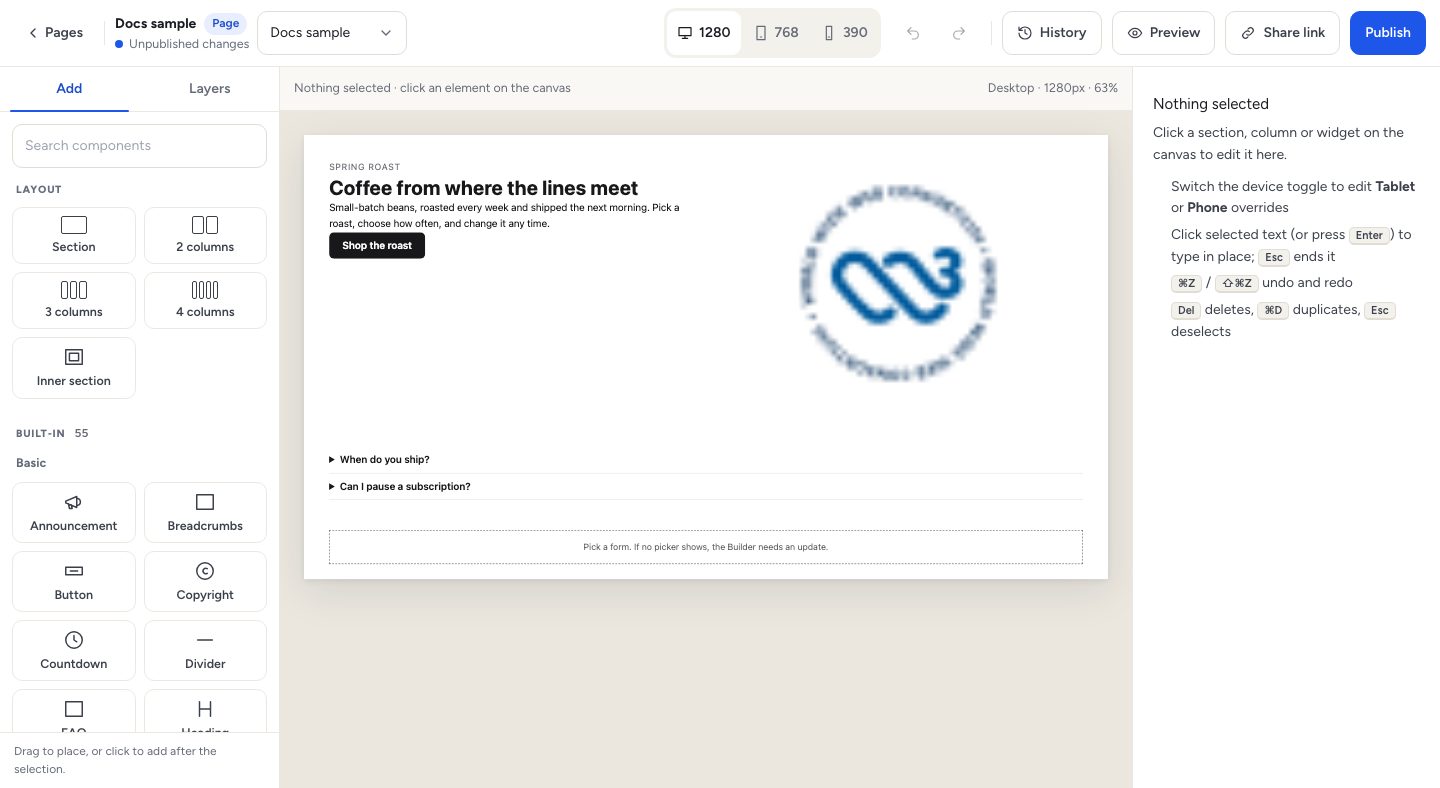
- The top bar shows the state: Saved · draft, Unpublished changes, Offline, changes kept (they are saved when you are back online) or Not saved.
- If the draft was changed elsewhere, for example by an AI agent, a banner says This page changed elsewhere and offers Keep mine or Reload their version.
Preview
- Preview in the top bar shows the page without the editor. Exit preview goes back.
- The Preview link menu makes a link to share the draft with someone who has no Throttle account. It needs no sign-in, is read only and expires (1 hour for a person's link).
-
For an AI agent,
get_preview_urlanswersdraftUrl(the draft, no sign-in, 12 hours, drawn at the window's own width so it can be checked at 390, 768 and 1280 px),liveUrl(the published page, or null) andstorePreviewUrl(the draft on your store itself, 1 hour). The store preview needs a store URL in the site settings, and it is the only place a code component runs.
Publish
Choose Publish in the top bar. The dialog says "This makes the current draft live for visitors." and lists problems that would break the live store; fix them and publish again.
| What you publish | How |
|---|---|
| A page | Open it and choose Publish. |
| Header or footer | Open the header or footer from the document switcher and choose Publish. |
| Site settings | In the same dialog tick Also publish the site settings, or use Publish site settings on the Site screen. |
| A saved section | Open it and publish. Pages that use it show the new version once they are published or refreshed. |
| A page deletion | Deleting a page stays a draft until its deletion is published. |
- Publish saves your draft first, so what goes live is exactly what you see.
- If the draft changed after the preview (you or another agent edited it), publishing stops with a conflict, so nothing you have not looked at goes live.
- Images are frozen into the published copy (see Media).
-
AI agents:
publish(page, header, footer, template; withincludeSitealso the settings) andpublish_site_settingsneed the Publish level. Publishing a page deletion or a saved section needs Full.publishalways needs thebaseRevthe agent previewed.
History: versions and undo
Choose Version history in the top bar. It has two lists.
Changes and undo
- Undo and Redo in the top bar (⌘Z, ⇧⌘Z) step back through your editing, up to 150 steps.
- The change list shows each draft change, by you or by an AI agent, newest first. Undoing a change says "Undone. Nothing was published.": it only changes the draft.
- An agent uses
list_changesandundo_change(with documentsitefor the site settings). It must undo the newest change that is not undone first.
Versions and restore
- Every publish saves a version. Each document keeps the latest 100.
- Restore puts an older version into your draft. Your current draft is saved first as a checkpoint, so you can go back to it. Nothing goes live until you publish.
- An agent uses
list_versionsandrestore_version; for site settingslist_site_settings_versionsandrestore_site_settings_version.
Discard draft
Discard draft throws away your unpublished changes and goes back to the published copy. It is not offered when nothing has been published. An agent uses discard_draft.
Delivery: Live or Build-time
How your store gets what you publish is a setting you can change at any time, in the Site screen (Wording, delivery and shop). Only an admin or developer can change it.
| Mode | What happens when you publish |
|---|---|
| Live (the default) | The store reads each page as it is published and refreshes only what changed. The simplest choice. |
| Build-time | Published changes wait until you choose Release. A release is a frozen copy of everything published, and your host rebuilds the store once from it. |
Releases (Build-time)
- In Build-time mode the dialog says "this page goes live when you press Release". The Release panel lists what was published since the last release.
- Set a deploy hook (a public https address from Vercel, Netlify or your host) and Release calls it once to rebuild. Without a hook a release is still made, but nothing is sent.
- Releases are limited: one every 10 seconds and 20 an hour. The latest 50 are kept.
- Roll back to this on a release rebuilds the store with exactly what that release held, as a new release.
- AI agents:
create_release,list_releasesandrollback_releaseneed the Full level and a store in Build-time mode (otherwiseNOT_BUILD_MODE).
The technical side is in Delivery modes for developers.