Media
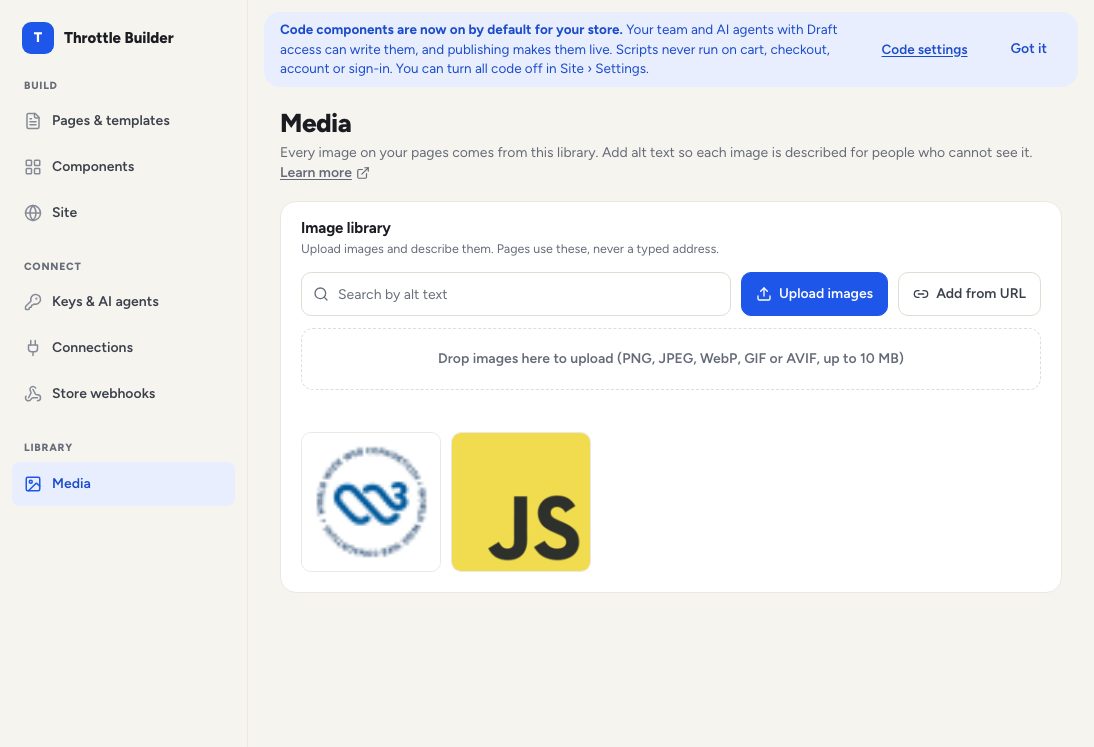
Every image on your pages comes from the media library. You upload an image once, describe it with alt text, and pick it in any component or setting that takes an image. Pages use these library images, never a typed address.
Upload images
Open Media, then drop images on the drop area or choose files with the file picker. You can upload several at once.
| Rule | Value |
|---|---|
| Allowed types | PNG, JPEG, WebP, GIF, AVIF or SVG. An SVG is cleaned before it is stored: scripts, event handlers and links or references that leave the file are removed. |
| Largest file | 10 MB (and at most 40 megapixels); an SVG at most 20 KB |
| Privacy | A JPEG is stored without its EXIF data (GPS position, camera, editing software). Pixels and orientation are unchanged. |
| Animated GIF | The original keeps its animation. The smaller copies use the first frame. |
A file that is too big or the wrong type is refused with a message that names the file. You can also pick or upload an image from the picker inside any image setting.
Add from URL
Choose Add from URL above the drop area. Type the Image address, optionally write Alt text (optional), and choose Add image (Cancel closes the form). Throttle downloads the image once and keeps its own copy in your library, so it needs a public https address (PNG, JPEG, WebP, GIF, AVIF or SVG, up to 10 MB, 20 KB for an SVG). The same button is in the picker inside any image setting.
The library itself is Throttle's media library, shared with the rest of your store, with its own limits (60 uploads a minute, 10,000 images and 5 GB of originals). See Media for developers.
Sizes and width variants
Throttle keeps your original and makes WebP copies at 320, 640, 1024, 1600 and 2400 pixels wide, never larger than the original (a 1100 pixel image gets 320, 640 and 1024). The Builder uses these copies so a phone does not download a desktop-size image. You do not choose a size; the store picks the right one.
Alt text
Select an image to see its size, then write Alt text (up to 500 characters) and choose Save alt text. Alt text describes the image for people who cannot see it and for search engines. An image without it shows as "Image with no alt text" in the library, and an image setting shows "No alt text" until you add it. Use Search by alt text to find an image.
An AI agent changes alt text with update_media.
Where images are used
Choose an image in a component's image setting, in a section or column background, in the brand settings or as a page's share image. The setting holds the image's id. When you publish, the Builder freezes the images a page uses into the published copy, so a store never has to ask the library for them one by one.
Deleting an image
- Select the image, choose Delete, then Yes, delete.
- Delete does not refuse an image that pages use. It is a soft delete. Pages that were already published keep showing it, because their copy was frozen when you published, until its file is removed (30 days).
- When you publish a page that still uses a deleted image, the publish succeeds with a warning (
ASSET_DELETED): "This image was deleted from the media library. It keeps showing until its file is removed; replace it." Replace it before then. An image that no longer exists at all blocks the publish.
delete_media, which needs the Publish level, or Allow publishing on a key made before access levels. Ask the agent to check where an image is used first.
What an AI agent can do
| Tool | What it does | Level |
|---|---|---|
list_media | Search the library by alt text and page through the results. | Read |
upload_media_from_url | Add an image from a web address, with optional alt text. Throttle downloads it (up to 10 MB, same types). The editor has the same thing as Add from URL. | Draft |
upload_media | Add an image from bytes the agent holds: base64 data with its content type (PNG, JPEG, WebP, GIF or AVIF, about 700 KB at most because an MCP request is capped at 1 MB), or SVG markup as text (sanitized, up to 20 KB). Use it only when the image has no public address. | Draft |
update_media | Change an image’s alt text. | Draft |
delete_media | Delete an image (soft delete, as above). | Publish |
Details and errors are on the tool reference.