Site settings
Site holds everything that applies to the whole store rather than to one page: its look, its name and logos, menus, the announcement bar, how it appears in search and when shared, its wording and how it reaches your store. Open it from Build in the left menu.
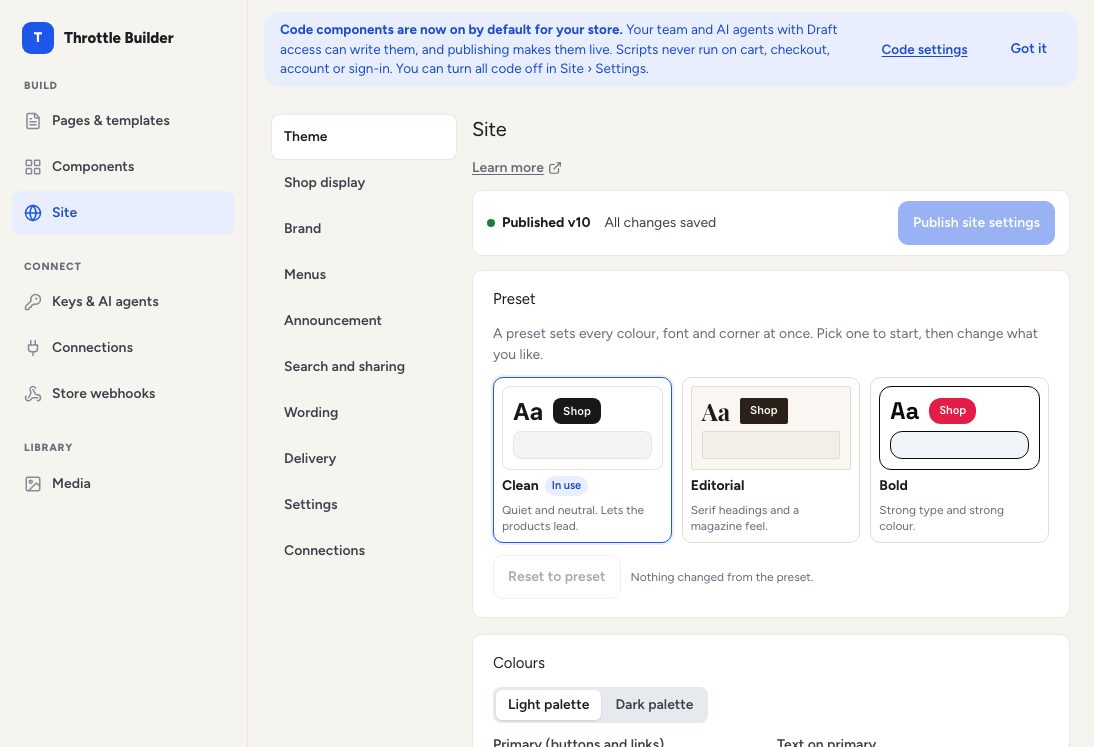
The tabs
| Tab | What it sets | Guide |
|---|---|---|
| Theme | Preset, colours for the light and dark palettes, fonts, corners, spacing, colour scheme and custom CSS. Has a live preview. | Theme and custom CSS |
| Shop display | Product cards, badges and the product page. Shown only when Product Catalog is installed. | Wording, delivery and shop |
| Brand | Store name, logos, logo height, favicon and share image. | Brand |
| Menus | The header, footer and mobile menus, and up to 10 more. Has a live preview. | Menus and mega menu |
| Announcement | The bar at the top of the store: messages, schedule, targeting, rotation and style. | Announcement |
| Search and sharing | Title template, default description, previews, structured data, indexing, sitemap, robots.txt and redirects. | Search and sharing |
| Wording | The store’s languages, the words around the store and the shop wording. | Wording, delivery and shop |
| Delivery | Live or build-time, releases, roll back and the deploy hook. | Wording, delivery and shop |
| Settings | The store-wide code components switch and the paths of the store’s own pages. | Wording, delivery and shop |
Saving and publishing site settings
Site settings are a draft, like pages. A change on any tab is saved to the site draft on its own (the bar says All changes saved) and shows in the editor and in preview. Nothing changes on your store until you choose Publish site settings in the Site screen's bar. Publishing the site refreshes every page of the store once, because every page uses the theme, menus and brand. See Publishing and history.
An AI agent reads the site with get_site and changes it with update_site_settings; each section it sends replaces that whole section of the
draft. Agents cannot change the Throttle key in Connections or the store page paths: only a person can.
Which setting wins
Many site settings, such as card style, badges and shop wording, can also be set by your developer in code, as
props of the @usethrottle/storefront-react components. The order is always:
- The Builder setting, when you have set one.
- The SDK prop your developer set in code (a component's own prop beats the store-wide one).
- The standard default.
A setting left on Default in the Builder defers to the code. So a developer can give the store a sensible look in code, and you can change any part of it from the Builder without a deploy.