Connect and AI agents
An AI agent can build and edit your store with the Builder: it reads your site, edits drafts, checks its work in a preview and, if you allow it, publishes. You give it one address and either a key or a sign-in, and you choose what it may do. It can never change your catalog data.
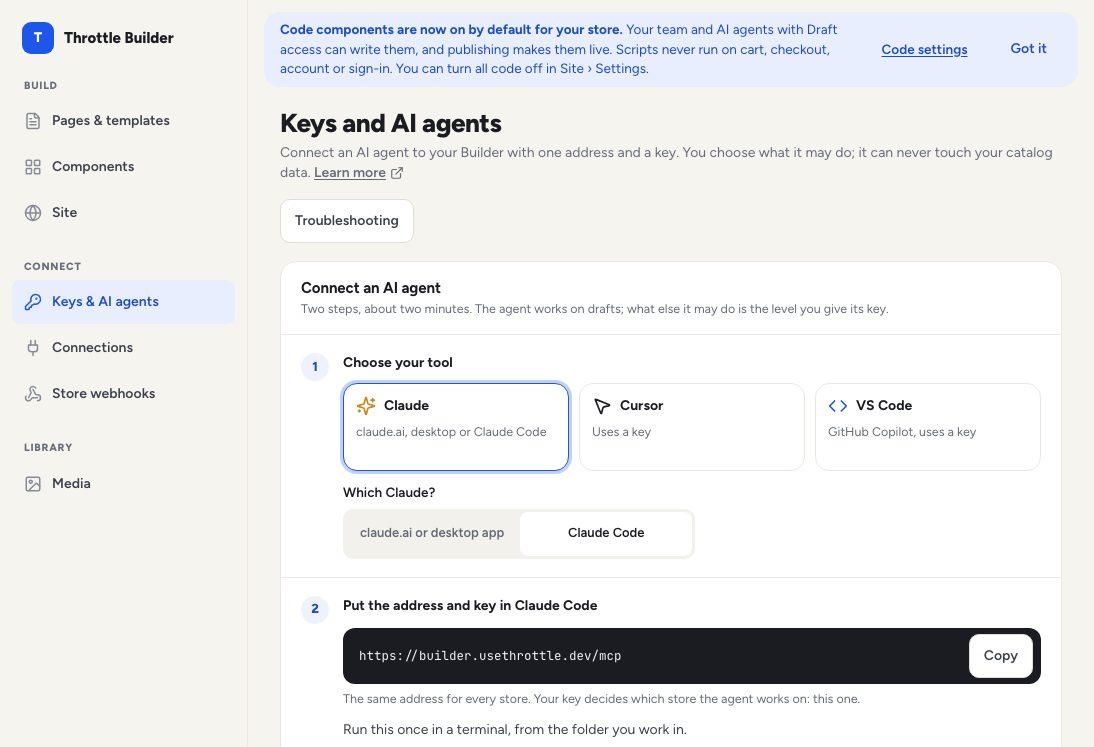
The Keys and AI agents screen
In the Builder dashboard, open Keys and AI agents. From top to bottom it has:
- Connect an AI agent: choose your tool, then paste the address and a key into it (step by step below).
- Let it see your store: how to give the agent a browser so it can look at its own work.
- Test the connection: paste a key to see that it works and which tools your agent gets. It is checked once and not kept.
- Keys: your keys, each with its name, last four characters, level and when it was last used, and a Revoke button.
- Hosted assistants: assistants such as claude.ai that signed in instead of using a key.
- Troubleshooting: the common problems with their fixes (copied on the Troubleshooting page).
The address
Every assistant connects to the same address. Your key or your sign-in decides which store it works on.
https://builder.usethrottle.dev/mcpKey kinds
Choose Create key, give the key a name after the tool or place that will use it, then say what it is for. A key is shown once, when you create it. Copy it then. It cannot be read back later.
| Kind | Starts with | What it is for |
|---|---|---|
| An AI agent or script (secret key) | tb_sk_ | Claude Code, Cursor, VS Code and your own scripts. It has an access level (below). Keep it out of files you share or commit. |
| A website or app (publishable key) | tb_pk_ | Lets a storefront read what you have published. It cannot edit anything. It has a channel: Server, App or Browser. |
Publishable key channels
| Channel | Meaning |
|---|---|
| Server (your own backend) | Used by your own server. It sends no website address. |
| App (a mobile or desktop app) | Used by an app. Allowed websites are optional. |
| Browser (a web page, limited to the websites you list) | Works only from the websites you list under Allowed websites. List one https address per line, with no path, for example https://shop.example.com. A browser key needs at least one. |
Limits
- Up to 2 active secret keys and 20 active publishable keys. Revoke one to free a place.
- Keys do not expire. A key cannot be changed or read back: to rotate one, create a new key and revoke the old one.
- Each key or assistant may make 120 tool calls and 60 writes a minute (rate limits).
Access levels
Each secret key and each signed-in assistant has a level. You can change it at any time, and it applies on the very next call.
| Level | What it may do |
|---|---|
| Read | Reads your site and pages. Changes nothing. |
| Draft | Edits drafts, including custom code components. Never publishes. |
| Publish | Edits and publishes pages and site settings. Never publishes page deletions, saved sections or releases. |
| Full | Publishes everything, including page deletions, saved sections and releases. |
- Code permission. Code can read and change anything on your store pages. There is no separate code switch for a key: a key or assistant at Draft or above may write custom code components. They reach your store only when someone with Publish access publishes the page. See code components.
- Full can be granted only by the workspace owner or the person who installed Throttle Builder.
- Allow publishing. Keys and connections made before access levels are shown as Custom (legacy) and keep exactly the scopes they had. Only these have an Allow publishing switch: with it on, the agent can publish pages to your live store without asking you. Once a key matches a level, lower the level instead. New keys use levels.
- A tool a level may not use is not even listed to the agent. The full list is on the MCP tool reference.
Set up your tool
Choose your tool in Connect an AI agent. Supported: Claude (claude.ai, the desktop app and Claude Code), Cursor and VS Code with GitHub Copilot.
Each snippet below uses the placeholder tb_sk_PASTE_YOUR_KEY. Replace it with your own key.
Claude: claude.ai or the desktop app (sign in, no key)
claude.ai connectors cannot send a key, so they sign in to Throttle instead. There is no key and no client ID: paste the address only.
- In claude.ai or the Claude desktop app, open Settings, then Connectors, then Add custom connector.
- Name it Throttle Builder and paste
https://builder.usethrottle.dev/mcpas the URL. - Leave Advanced settings empty. Do not paste a client ID or a secret.
- Choose Add, then Connect. Throttle opens: sign in.
- Pick the workspace, the application and the environment where Throttle Builder is installed, choose the level, and choose Approve.
The assistant then appears under Hosted assistants, where you can change its level or revoke it. A new connection can take up to 5 minutes to work; if claude.ai says it could not connect, wait and reconnect.
Claude Code (uses a key)
- Choose Create a key, pick a level and copy the key from the dialog.
- Run this once in a terminal, from the folder you work in:
claude mcp add --transport http throttle-builder https://builder.usethrottle.dev/mcp --header "Authorization: Bearer tb_sk_PASTE_YOUR_KEY"Then run claude mcp list: throttle-builder should say Connected.
Cursor (uses a key)
Save this as ~/.cursor/mcp.json (your own user config, which is not part of any project), then restart Cursor.
{
  "mcpServers": {
    "throttle-builder": {
      "url": "https://builder.usethrottle.dev/mcp",
      "headers": { "Authorization": "Bearer tb_sk_PASTE_YOUR_KEY" }
    }
  }
}
To keep it in a project file (.cursor/mcp.json), keep the key out of it: set an environment variable named THROTTLE_BUILDER_KEY to your key and use this.
{
  "mcpServers": {
    "throttle-builder": {
      "url": "https://builder.usethrottle.dev/mcp",
      "headers": { "Authorization": "Bearer ${env:THROTTLE_BUILDER_KEY}" }
    }
  }
}
In Cursor Settings, MCP: throttle-builder shows a green dot and its tools.
VS Code (GitHub Copilot, uses a key)
Save this as ~/.copilot/mcp-config.json (VS Code's user-level Copilot config, not part of any project), then run MCP: List Servers and check throttle-builder is listed (start it if it shows Stopped).
{
  "mcpServers": {
    "throttle-builder": {
      "type": "http",
      "url": "https://builder.usethrottle.dev/mcp",
      "headers": { "Authorization": "Bearer tb_sk_PASTE_YOUR_KEY" }
    }
  }
}
To keep it in the project, save this as .mcp.json in the workspace root. Project files are often committed, so it reads the key from an
environment variable named THROTTLE_BUILDER_KEY: set it to your key. VS Code reads an existing .mcp.json as is; to add one with MCP: Add Server, turn on the setting chat.mcp.workspaceRootConfig.enabled.
{
  "mcpServers": {
    "throttle-builder": {
      "type": "http",
      "url": "https://builder.usethrottle.dev/mcp",
      "headers": { "Authorization": "Bearer ${THROTTLE_BUILDER_KEY}" }
    }
  }
}
Copilot Chat in Agent mode lists the throttle-builder tools. The screen also shows VS Code's older, deprecated setup (.vscode/mcp.json) for people who still use it.
export THROTTLE_BUILDER_KEY=tb_sk_PASTE_YOUR_KEY && code .) and restart VS Code.
Let it see your store
An agent that cannot look at a page is guessing. Add one browser tool to your agent: it asks Throttle Builder for a preview link, opens it, looks and fixes what it sees. It opens preview links at 390, 768 and 1280 px wide. The screen offers three:
- Playwright MCP (start here): opens a clean browser the agent controls, at any width. In Claude Code:
claude mcp add playwright -- npx @playwright/mcp@latest. - Claude in Chrome: uses your own Chrome, signed in as you. Needs a direct Anthropic plan and the Claude in Chrome extension (version 1.0.36 or later); start Claude Code with
claude --chrome. - Chrome DevTools MCP: adds the console, network requests and performance. In Claude Code:
claude mcp add chrome-devtools -- npx chrome-devtools-mcp@latest.
Throttle never takes screenshots for the agent: it opens the preview link in a browser of its own.
Revoking
- A key: choose Revoke on its row and confirm with Yes, revoke. A tool that still holds it is refused from its next call.
- A hosted assistant such as claude.ai: choose Revoke on its row under Hosted assistants. It has to sign in again.
- To lower what an agent may do without removing it, change its level instead.
Next
- MCP tool reference: every tool, its inputs, answers and errors.
- Troubleshooting: fixes for connection and publishing problems.
- Builder MCP for developers.