Verify email
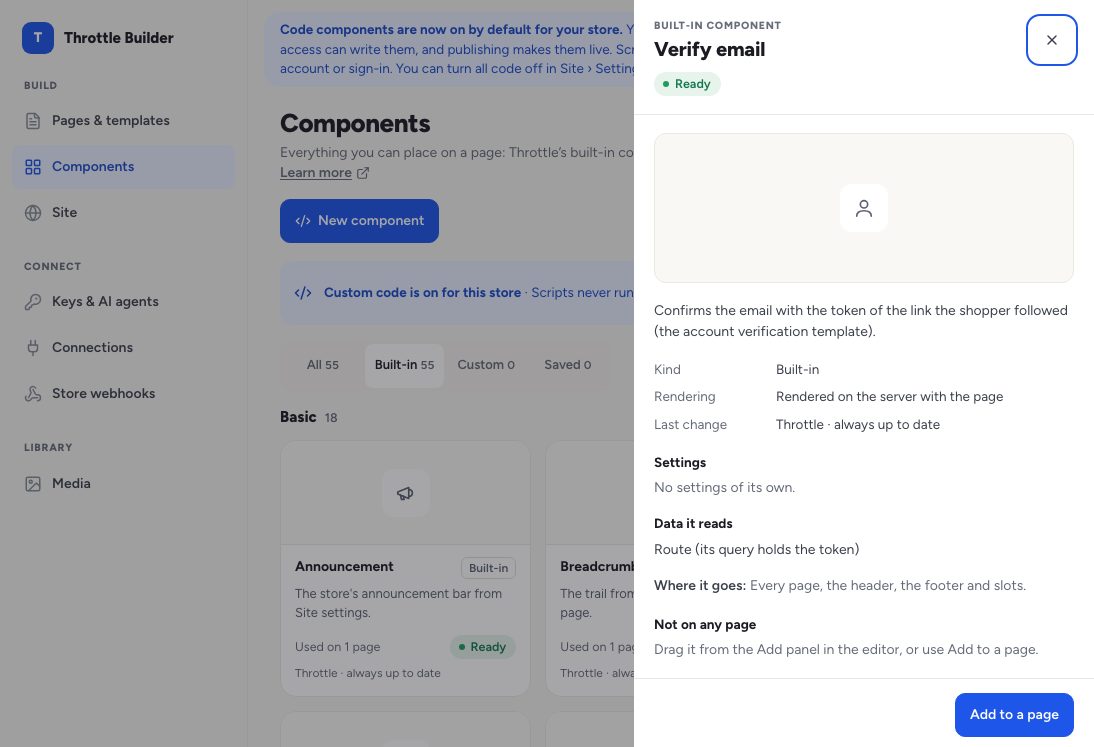
Confirms the email with the token of the link the shopper followed (the account verification template).
What it is for
Confirms the shopper's email with the token in the link they followed. Use it on the account verification template.
Where you can use it
On any page, template, saved section, header or footer.
In the editor, open the Add tab of the left panel and drag it into a column. Its type is commerce.verify-email, version 1.
Options
This component has no options of its own beyond the ones every component has.
Every component also has the common options: Hide, Anchor, Space above, Space below, Entrance animation and Entrance delay.
Data
This component shows store data. In the editor, choose what it shows under Data on the
Content tab. An AI agent sets it with set_data_binding.
| Input | Name | Takes | Required | Filled by |
|---|---|---|---|---|
| Route (its query holds the token) | route | route | No | This route (context.route) |
Responsive behaviour
Every option can be set again for tablet (768 to 1024 px) and phone (767 px and below): switch the device at the top of the editor and change it there. Tablet starts from the desktop value and phone from the tablet value, so you only set what differs.
It follows the width of its column.
SEO and accessibility
It runs in the browser with the token from the link. The verification template is set to noindex by default.
With an AI agent
An agent adds it with add_widget and changes its options with update_node, using the keys above. See the MCP tool reference.
{
  "type": "commerce.verify-email",
  "v": 1,
  "props": {}
}@usethrottle/builder-schema 0.4.2 and @usethrottle/storefront-react 0.4.5.