Wording, delivery and shop
Four smaller tabs of Site: Wording for the words around the store, Delivery for how published pages reach it, Shop display for product cards and product pages, and Settings for the code switch and the paths of the store's own pages.
Wording
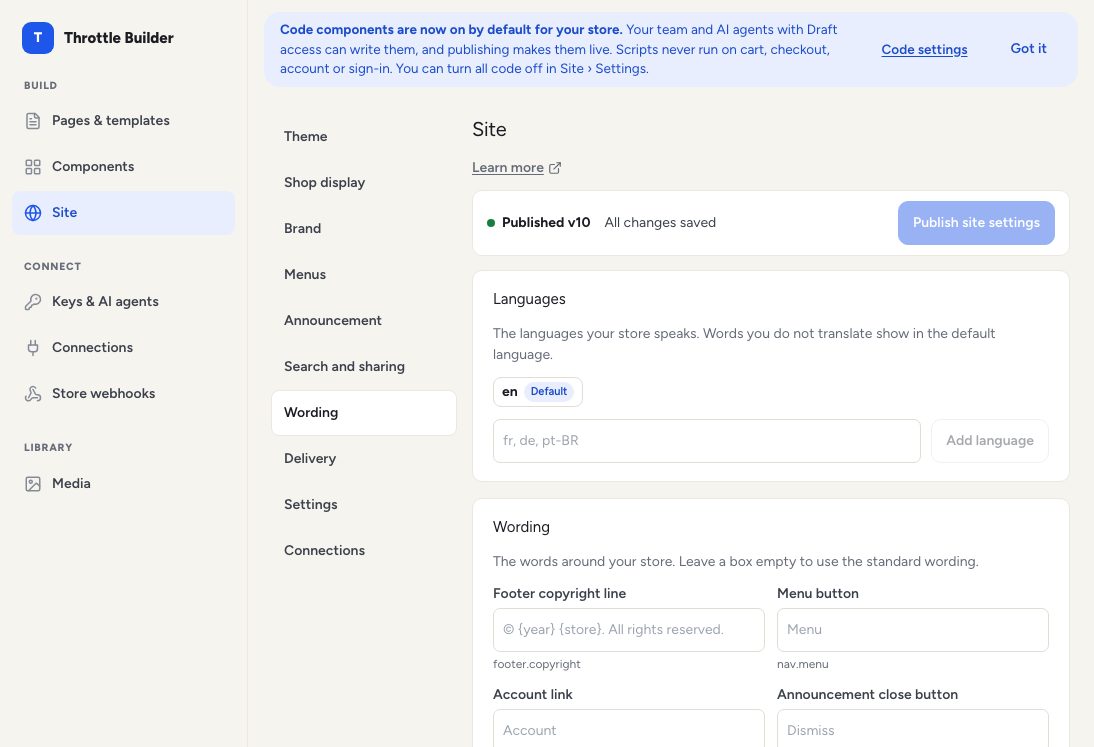
The words around your store: the menu button, the account link, the announcement close button, the skip to
content link, the breadcrumb home label, the footer copyright line and more. Leave a box empty to use the
standard wording. Each box shows its key, such as nav.menu.
Languages
The tab lists the languages your store speaks; with Product Catalog installed, they are the languages set there. Otherwise choose Add language and use a language code such as fr or pt-BR. Switch the language at the top to edit its words. Words you do not translate show in the default language.
Shop wording
With Product Catalog installed, Shop wording holds the words of your shop, in groups: Shop page, Home page, Search, Product lists, Filters, Sorting, Product page, Cart, Navigation, Empty states, Errors, and Yes and no. Leave a box empty to use your catalog's wording. Each group shows how many words you changed.
Delivery
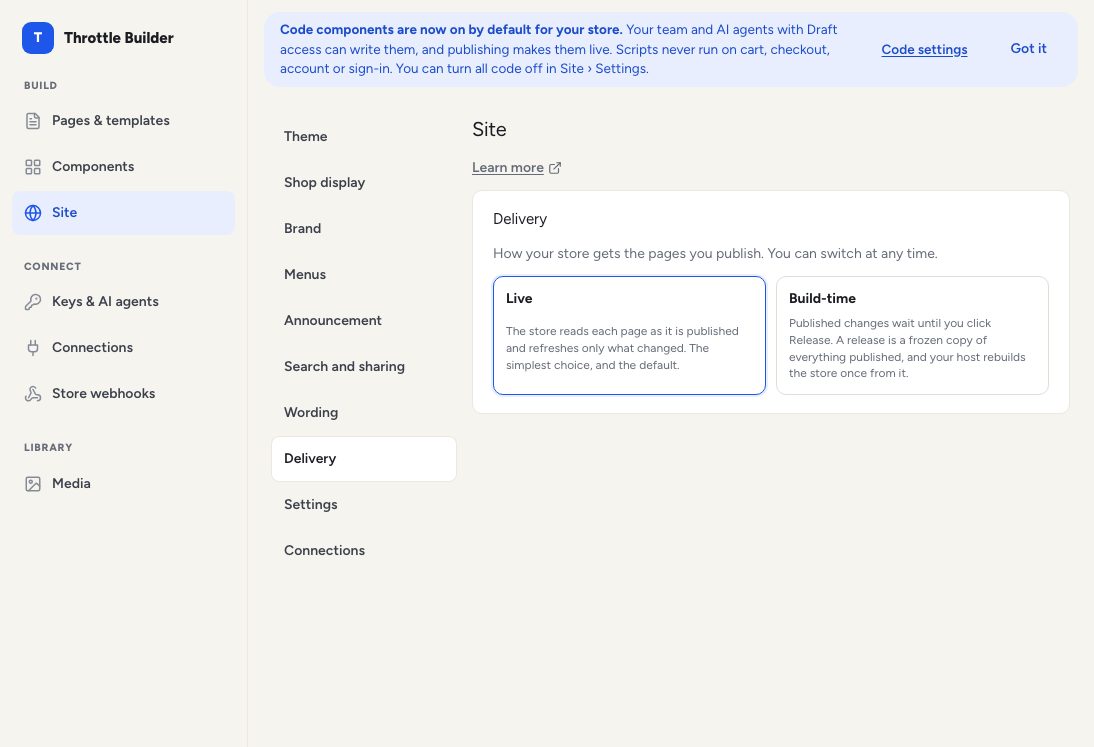
How your store gets the pages you publish. You can switch at any time. Only an admin or developer of the store can change it.
| Mode | How it works |
|---|---|
| Live | The default and the simplest choice. The store reads each page as it is published and refreshes only what changed. |
| Build-time | Published changes wait until you click Release. A release is a frozen copy of everything published, and your host rebuilds the store once from it. |
On build-time, Next release lists what is waiting. Release now builds your store once with everything published; you can release once every 10 seconds and 20 times an hour. The release history lists earlier releases, and Roll back to this makes the store use one of them again.
The Deploy hook is the address your host (Vercel, Netlify or any https URL) gives you to start a build. Throttle calls it once for each release. Without one you can still release, but nothing is sent to your host. Your developer sets up the store side: see Builder delivery modes.
Shop display
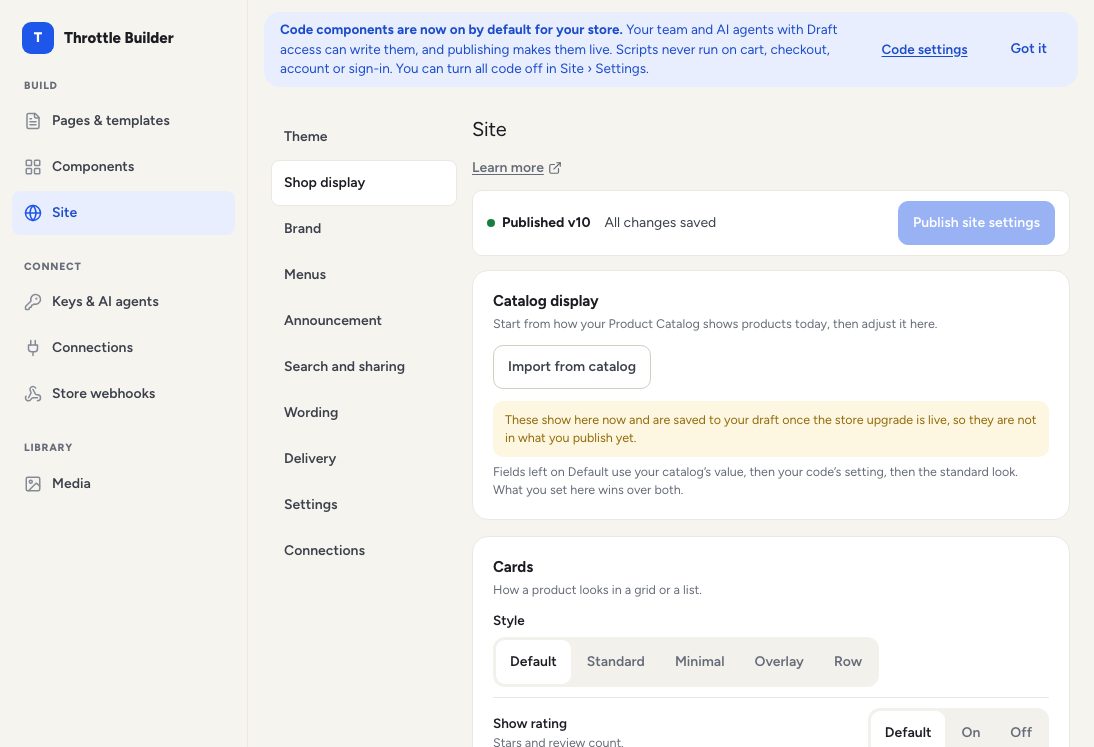
Shop display comes with Product Catalog: without it, the tab asks you to install the catalog and link it in Connections. It sets how products look everywhere in the store. Every option starts on Default, which defers to your developer's code and then the standard look; what you set here wins over both (see which setting wins).
import_catalog_display is refused with SETTINGS_V2_NOT_ENABLED until then.
Import from catalog copies how your Product Catalog shows products today into your draft, to start from. Review it, then publish. Badge colours come across too: the sale colour, the new colour and each custom badge's colour. A badge left on the catalog's default colour isn't copied, so it keeps your theme's colour, exactly as the store shows it today.
| Card | Options |
|---|---|
| Cards | Card style (standard, minimal, overlay or row), and Default, On or Off for: Show rating (stars and review count), Show swatches (colour options under the name), Show brand, Show compare-at price (the crossed-out price), Show badges (sale, new and the custom badges), Second image on hover, and Quick add (an add-to-cart button on the card). |
| Badges | Sale; New, with the days a product counts as new (1 to 365); Low stock, with the units left before it shows (1 to 1,000); and up to 10 custom badges of your own (Set my own), or the catalog’s. |
| Product page | Layout (classic, stacked or editorial), a starting composition you apply with Reset template on the product template; Sections look (auto, tabs, accordion or stacked); and the sections and their order (Customize sections): Description, Specifications, Shipping, Tags, Categories, You may also like and Reviews. Up to 24 related products. |
Settings
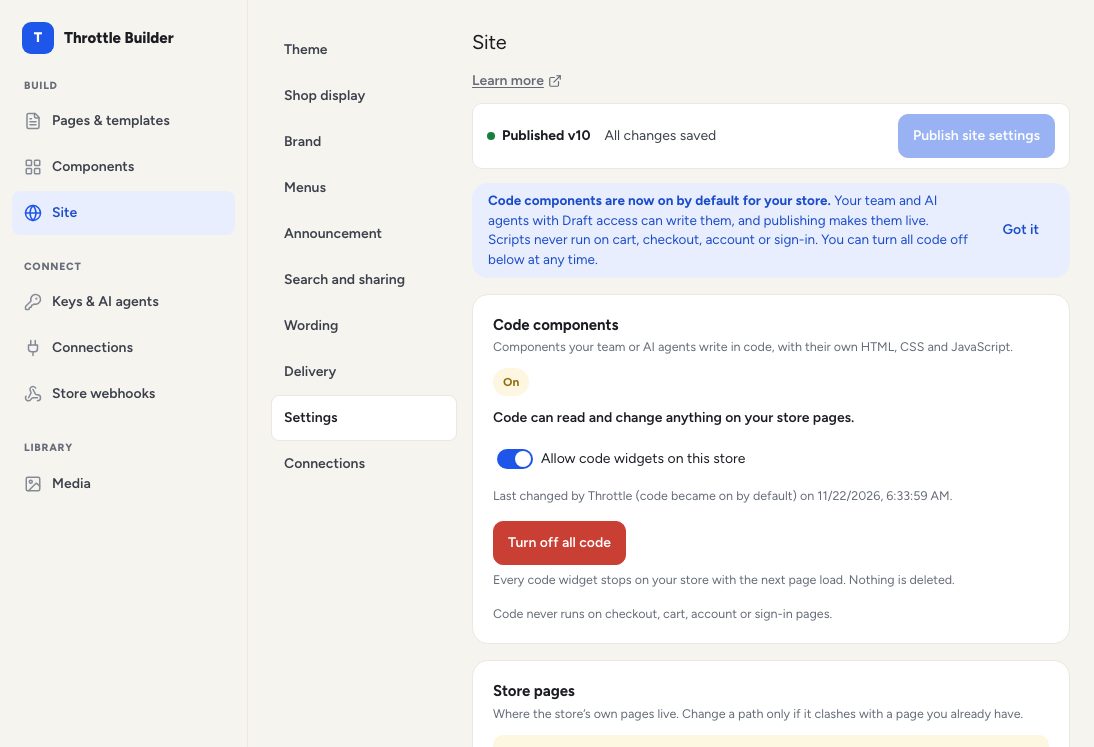
Code components
Allow code widgets on this store is the store-wide switch for code components. It is on by default. Only an admin can turn code on; anyone who edits can turn it off. Turning it off stops every code widget on your store with the next page load, and nothing is deleted. Code never runs on checkout, cart, account or sign-in pages, whatever this switch says.
Store pages
Where the store's own pages live. Change a path only if it clashes with a page you already have. Only a person can change these, not an AI agent.
| Page | Default path | What it is |
|---|---|---|
| Cart | /cart | Where shoppers review their cart. |
| Account | /account | The signed-in shopper’s account. |
| Sign in | /sign-in | Where shoppers sign in. |
| Sign up | /sign-up | Where shoppers create an account. |
| Order complete | /order/complete | The thank-you page after checkout. |
| Account verification | /account/verify | Fixed: Throttle’s verification emails link to it. |