Search and sharing
The Search and sharing tab of Site decides how your store looks in Google and when a page is shared, which facts search engines read, what they may crawl and where old addresses go. Each page can override the defaults in its own page settings.
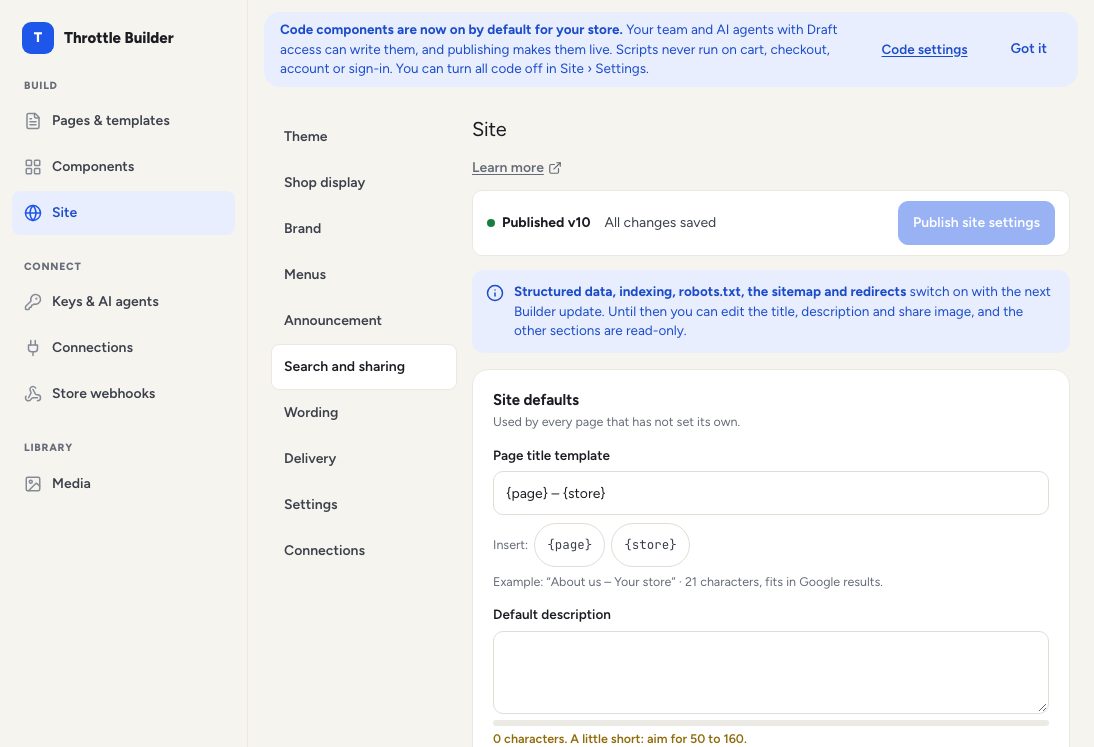
Site defaults
Used by every page that has not set its own.
| Setting | What it does |
|---|---|
| Title template | How each page title is built. {page} is the page title and {store} your store name; the default is {page} – {store}. Up to 200 characters. |
| Default description | The description for pages that have none of their own. One per store language. |
| Default share image | Used when a page has no image of its own. You can also set it on the Brand tab. |
Previews
Previews shows how a page looks when found or shared: a Google result on a computer and on a phone, and the cards that Facebook, X, iMessage and Slack draw. Pick the page to preview, for example a product page or a collection page. Google writes its own snippet sometimes, and the price and stock in a product result come from Product structured data.
Structured data
Structured data are facts search engines read to show prices, ratings and paths in results. They are written into the page HTML as JSON-LD. The tab has a switch for each kind, but only some of them change what your store writes today.
| Kind | What happens |
|---|---|
| Product and Breadcrumb list (product pages) | The product page template of the store always writes Product and BreadcrumbList data, whatever the switches say. Needs Product Catalog. |
| Breadcrumb switch | Read by the Breadcrumbs component on Builder pages. Shows Shop › Coffee › Ethiopia Guji instead of the address. Do not rely on it for product pages, which already write their own. |
| FAQ switch | Read by the FAQ accordion component, which then writes FAQ data from its questions. Google shows these only for some sites. |
| Organization, Website search box, Local business | Written on the home page when the switch is on, from your store name, logo, profile addresses, address, phone and opening hours. Organization and Website need a store name; Local business also needs an address. |
A store that already writes its own Organization data can turn the automatic data off with the siteJsonLd: false option of createBuilderRoute. See Builder for developers.
Indexing
What search engines may crawl, and where old addresses go.
Hide the whole site
Hide this whole site from search engines is for a store that is not ready. Every page tells Google and other crawlers not to list it, but pages still open for anyone with the link. While it is on, every Site tab shows a red warning. Turn it off before you go live.
Canonical base address
Search engines treat this address as the real one for every page. Use the site address without a path, such as https://shop.example.com. Leave it empty to use your store address.
Per page and per template
Noindex and canonical are set per page: open a page in Pages, then Page settings, Search. Templates set them once for every page they draw. These templates start as noindex: search results, cart, account, account verification, sign in, sign up and order complete.
Sitemap
The store publishes /sitemap.xml. Choose which kinds of address it lists: pages,
products, collections, categories and tags (all on by default). Under Leave out of the sitemap,
list addresses to skip, one per line, up to 200, or pick a page.
robots.txt
The store publishes a generated robots.txt. By default it disallows /cart,
/account, /sign-in, /sign-up, /order/ and /search. Under Extra robots.txt lines you can add up to
50 lines of your own (User-agent, Allow, Disallow, Crawl-delay, Sitemap or # comments, 200 characters each); they
go between the generated ones. Reset to default restores the standard lines. The tab warns about
a line that would block the whole site.
Redirects
Redirects sends old addresses to new ones. Each row has From (a path such as
/old-address; end it with * to match everything under it), To (a path or a full address) and Type:
| Type | Use it for |
|---|---|
| 308 permanent, same method | The default. A page that has moved for good. |
| 301 permanent | A page that has moved for good (older clients). |
| 307 temporary, same method | A page that is away for a while. |
| 302 temporary | A page that is away for a while (older clients). |
A site has up to 500 redirects, and a chain of redirects may be 3 hops long at most. Paths the store needs for itself cannot be redirected: /api, /_next, /sitemap.xml, /robots.txt, /favicon.ico and /.well-known. You can import and export the table as a CSV file.
With an AI agent
An agent sets these in the seo section of update_site_settings, and a page's own title, description, image, noindex
and canonical with update_page_meta. See the MCP tool reference and Pages and templates.