Saved and code components
Beyond the built-in components you can reuse a section on many pages (a saved section), and write your own components with HTML, CSS and JavaScript (a code component). Both live in the Components library next to the built-in ones.
The Components library
Open Components in the Builder. It has three kinds, shown as tabs and as a Kind of component filter. The address #/components?kind=builtin, custom or saved opens a tab directly.
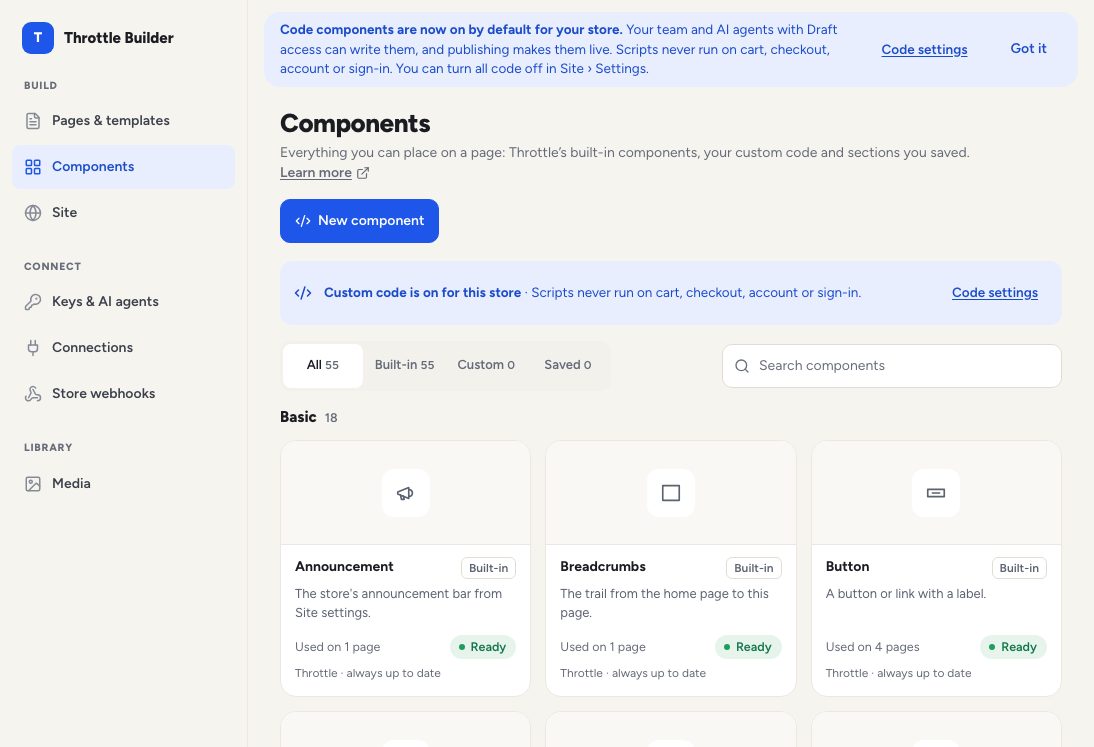
| Kind | What it holds |
|---|---|
| Built-in | The components Throttle ships. See the component pages. |
| Custom | Components you or an AI agent made: code components, and the advanced composite and template kinds. |
| Saved | Sections you saved to reuse. |
Choose a card to see its details: its kind, how it renders, when it last changed, where it is used and what pages it works on. A custom or saved component shows the pages that use it, each with an Open button.
New component offers Code (your own HTML, CSS and JavaScript, rendered with the page) and Saved section (an empty section you build once and add to many pages). The advanced kinds Composite (several built-in components bundled as one) and Template (markup with placeholders that reads your catalog data) are made by an AI agent or through the Widget API. See Components.
Saved sections
A saved section is a section you build once and use on many pages. A page that uses it holds a link, not a copy. Edit the saved section once and every page that uses it changes, after you publish it.
Create one
- Open a page and select a top-level section.
- Choose Save as section in its toolbar and give it a name. This makes a copy you can add to any page.
- Or choose New component, then Saved section, to start from an empty one.
An AI agent does the same with create_saved_section. Only a top-level section can be saved, and a saved section cannot hold another saved section.
Insert it on a page
Add it from the Saved tab of the Add panel in the editor, or with insert_saved_section. The block shows as Linked saved section, with the buttons Edit saved section and Detach.
Edit once, change everywhere
Edit saved section opens it in the editor. The panel shows its state: "Published as version N", with or without unpublished changes, and the other pages that use it. A change reaches the pages that use it only when the saved section is published.
Detach
Detach turns the block into a copy that belongs to this page. Other pages keep the link. An agent uses detach_saved_section. Detach is one undo step.
Publishing and deleting
- A page cannot be published while a saved section it uses has never been published (
SAVED_SECTION_UNPUBLISHED). Publish the saved section first. - A person can publish a saved section from the editor. An AI agent needs the Full level (
publish_saved_section). - A saved section that a draft or published page still uses cannot be deleted (
SAVED_SECTION_IN_USE, with the list of pages). Detach or remove the links, publish those pages, then delete it. - Limit: 200 saved sections per store.
Code components
A code component is your own HTML, CSS and JavaScript, saved as versions you can roll back. You place it on a page like any component and it is drawn with the page.
On by default, with one store-wide switch
- Code components are on by default for every store.
- The switch is Allow code widgets on this store in Site settings. Only an admin can turn code on. Anyone who edits can turn it off with Turn off all code, and every code component then stops on your store with the next page load.
- No AI key can change this switch. If an agent is told
CODE_WIDGETS_OFF, only a person can fix it.
Who can do what
| Action | Who |
|---|---|
| Create, edit, validate and roll back a code component | People with the admin or developer role, and AI keys or assistants at Draft level or above. No separate code permission. |
| Place a code component on a page | Anyone who can edit that page. |
| Make a new version live | Someone with Publish access, by publishing the page. A page freezes the version it was published with, so a Draft key cannot push code live. |
| Turn a version off or back on (set_widget_status) | Publish level. A component a merchant turned off can only be turned back on by the merchant in the Builder. |
| Turn all code off for the store | Anyone who edits (on needs an admin). |
How it renders: server first, then hydration
- Server-rendered HTML. The markup and CSS are written into the page by the server, like any other component, so the content is there before any script runs and search engines can read it.
- The script runs after load. On a live store page where code is on, the component also carries its input (its settings and data) and one
<script async>for its own script. The script starts after the document is ready, once for each copy of the component on the page. The script receives the component's element and its input. - Errors stay inside. If a script throws, the element is marked with an error and the rest of the page is left alone. A run that takes longer than 50 ms logs a warning in the browser console.
- Where it is only drawn. In the editor, in the Builder preview and anywhere code may not run, the markup and CSS are drawn but the script never runs, with a Runs on your store badge. To see it run, open the store preview link (
storePreviewUrlfromget_preview_url).
Safety and kill switch
- The script is stored once per version and is never part of the published page. The page holds only a fingerprint of it and a link to a Throttle address.
- That address checks on every request that code is on and that this version is active. If not, it answers an empty script that does nothing. So turning code off, or turning a version off, stops it even on pages your host has cached.
- The markup and CSS are checked again by the store before they are drawn, the same way as a template component, and the CSS is sanitised.
- Code is not sandboxed: it runs in the store page with the page's own power. The switch and the version history are the protection, not a sandbox. The syntax is checked when you save, which says nothing about what the code does.
- A script runs once per copy of a component, so guard anything global (such as adding a listener to
document).
Never on cart, checkout, account or sign-in
Scripts never run on the cart, checkout, account, sign-in, sign-up, account verification or order-complete pages, and the rule is not a setting. The renderer refuses any path with
a segment such as checkout, cart, basket, account, sign-in, log-in, register, order, pay, payment, password or wallet, or one that begins with confirm, thank, receipt, invoice or quote.
The templates in CODE_TEMPLATE_DENY (cart, account, account-verify, sign-in, sign-up, order-complete) never get a script whatever their path.
The component's markup and CSS still draw there. Its details show: Works on: every page except cart, checkout, account and sign-in.
Limits
| Limit | Value |
|---|---|
| Script (JavaScript) | 64 KB |
| Markup (HTML) | 20 KB |
| CSS | 10 KB |
| Versions kept per component | 50 |
| Custom component types per store | 200 |
| Input (settings and data) sent to the script | 200,000 characters; past that the script gets its settings only |
Versions and rolling back
Every save is a new version, listed with its number, who saved it ("You" or "AI agent" with the key label) and when. Roll back saves an earlier version as a new one and turns off
every version after it. Republish pages that use the component so they run the restored version. An agent uses list_code_widget_versions and rollback_code_widget. A version that was turned off is marked, and rolling back to it makes its code live again.
What an AI agent uses
create_code_widget, update_code_widget, validate_code_widget, list_code_widget_versions, rollback_code_widget, and set_widget_status. See the tool reference.
The template language for custom components
Custom components of the template kind, and the markup of a code component, are written in the Builder's small template language: settings and data placeholders, conditions and loops, with no scripts in the markup. It has fixed limits (for example a template up to 20 KB and CSS up to 10 KB). The full reference, with every element, helper and example, is in the developer docs: