Countdown
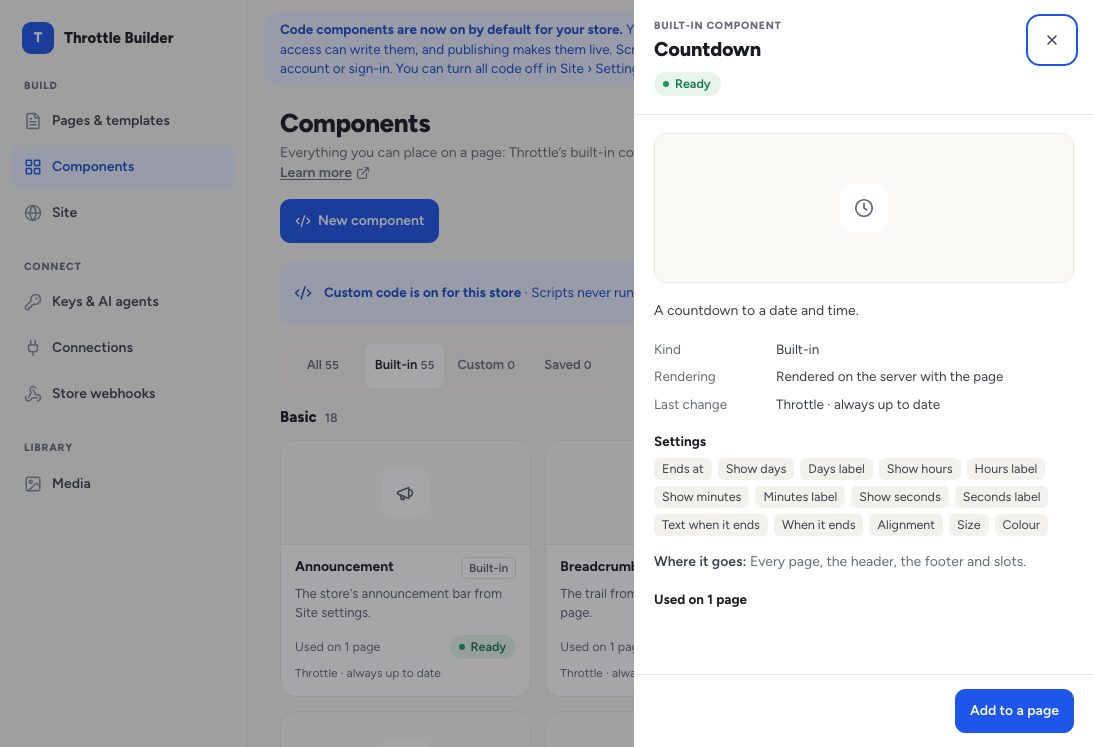
A countdown to a date and time.
What it is for
A countdown to a date and time, for a sale or a launch. After the date it shows a message or hides itself.
Where you can use it
On any page, template, saved section, header or footer.
In the editor, open the Add tab of the left panel and drag it into a column. Its type is basic.countdown, version 1.
Options
Content tab
| Option | Key | Allowed values | Default |
|---|---|---|---|
| Ends at | target | A date and time with its time zone offset, such as 2026-12-24T18:00:00+01:00. | Empty |
| Show days | showDays | On or off. | On |
| Days label | labelDays | Text, up to 40 characters. One value per language. | “Days” |
| Show hours | showHours | On or off. | On |
| Hours label | labelHours | Text, up to 40 characters. One value per language. | “Hours” |
| Show minutes | showMinutes | On or off. | On |
| Minutes label | labelMinutes | Text, up to 40 characters. One value per language. | “Minutes” |
| Show seconds | showSeconds | On or off. | On |
| Seconds label | labelSeconds | Text, up to 40 characters. One value per language. | “Seconds” |
| Text when it ends | expiredText | Text, up to 200 characters. One value per language. | “This offer has ended” |
| When it ends | expiredBehavior | Show the text (text), Hide the countdown (hide). | Show the text (text) |
Style tab
| Option | Key | Allowed values | Default |
|---|---|---|---|
| Alignment | align | Left, center, right or justify. | center |
| Size | size | xs, s, m, l, xl, 2xl, 3xl, or 8 to 200 px. | l |
| Colour | color | A theme colour (token:name) or a hex colour (#rrggbb or #rrggbbaa). | Empty |
Every component also has the common options: Hide, Anchor, Space above, Space below, Entrance animation and Entrance delay.
Responsive behaviour
Every option can be set again for tablet (768 to 1024 px) and phone (767 px and below): switch the device at the top of the editor and change it there. Tablet starts from the desktop value and phone from the tablet value, so you only set what differs.
The unit boxes wrap onto more lines on narrow screens. Alignment and size can be set differently on tablet and phone.
SEO and accessibility
The server writes the end date as text in a time element (for example 2026-12-24 17:00 UTC) and the empty unit boxes. The ticking numbers appear only after the page loads in the browser, so a shopper without script sees the date.
With an AI agent
An agent adds it with add_widget and changes its options with update_node, using the keys above. See the MCP tool reference.
{
  "type": "basic.countdown",
  "v": 1,
  "props": {}
}@usethrottle/builder-schema 0.4.2 and @usethrottle/storefront-react 0.4.5.